
[last updated – Feb 2026]
Quick Answer: To view someone’s LinkedIn activity, go to their profile, scroll to the Activity section, and click “See All” to view their posts, comments, and reactions with filtering options.
LinkedIn changes its interface frequently, but one thing has remained consistent: a person’s Activity section can reveal valuable insight into what matters to them professionally.
Used correctly, the Activity Feed helps you:
- Prepare for meetings
- Start more relevant conversations
- Spot timing signals for new opportunities
- Avoid generic “just checking in” outreach
This guide explains what you can (and can’t) see in 2025, why it matters, and how to access activity on both desktop and mobile.
Why View LinkedIn Activity? (And How It Helps)
Depending on how active a person is, their Activity section can provide a useful snapshot of their current priorities and interests.
You can typically learn:
- Topics they care about – based on posts they publish, repost, or comment on.
- Content they engage with – including articles, posts, and discussions they react to or comment on.
- What they’re actively talking about – comments often reveal more intent than original posts.
- Career-related updates – such as job changes or role announcements (when shared publicly).
This information is especially useful when you review it before a meeting, call, or outreach message. Many professionals use activity insights to:
- Ask about an article or idea someone recently shared
- Recommend relevant resources (books, tools, or articles)
- Congratulate them on role changes or announcements
- Reference a comment they made to start a thoughtful conversation
These context-rich interactions tend to land far better than a generic “just checking in.”
What You Can and Can’t See
LinkedIn has tightened privacy controls over time. As a result, not all actions are visible, even if someone is very active.
Typically Visible
- Posts they publish or repost
- Comments they leave on other posts
- Reactions (likes, celebrations, etc.), depending on settings
Often Not Visible
- New connections they make
- Groups they join or participate in
- Everyone they follow (companies or individuals)
What you see depends heavily on:
- The member’s privacy settings
- Whether content is public, connections-only, or private
LinkedIn’s own feed curation and limits
How to View Someone’s Activity Feed
To view someone’s activity feed, first navigate to their profile on LinkedIn. Scroll down to the Activity Section of the profile. There you will see the most recent 4 or 5 activities for that person. Here is an example, using my friend Dan Stalp’s profile:

Clicking on the “See All” link brings you to the activity page.

As you can see, there are different ways to filter a person’s activity at the top of the page. You can use “Posts” to see the latest posts your contact has shared. “All Activity” shows items they created AND things they have liked and commented on.
Available filters may change slightly, but posts, comments, and reactions remain the core categories.
Viewing Your Own LinkedIn Activity
Sometimes, you may want to view your own activity. For example, maybe you are looking for the article that you shared 3 days ago. Here are the two easiest ways to get to your activity feed.
The first is to use the main LinkedIn menu. Click on your picture and select Posts & Activity

This will bring you to a screen similar to the one we saw above:
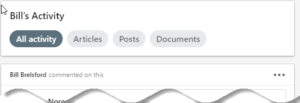
You can also bookmark this page for quick access when repurposing or referencing older content..
Using a Mobile App
Accessing your connections activity feed using LinkedIn’s mobile app works exactly as described above. Here is a screen shot of Dan’s activity using the LinkedIn app on my Android phone:

One difference you may notice is that the mobile app has replaced Documents with Interests. That could be a hint of things to come in the desktop version.
A Note About Privacy Settings
What appears in activity feeds is heavily influenced by privacy controls.
Your own visibility—and what you see from others—is affected by settings found under:
Settings & Privacy → Visibility
Key takeaways:
- Not all activity is shown, even if it happened recently
- Some members intentionally limit visible engagement
- LinkedIn does not show a complete or chronological activity history
New in 2026: Controlling Who Sees Your Activity Feed
LinkedIn has added more granular controls over activity visibility. Beyond the general privacy settings, you can now specify exactly who can view your activity feed.
This matters because it gives you more control over professional boundaries. You might want connections to see your activity, but not your entire network—or you might want to keep it completely private while job searching.
Here’s how to adjust this setting:
- Click on your profile picture in the upper right
- Select Settings & Privacy
- Navigate to the Visibility tab
- Look for “Visibility of your LinkedIn activity” or “Who can see your activity feed”
- Click Change and select from these options:
- Everyone – Maximum visibility (public)
- Your network – Connections plus followers
- Your connections – Only direct connections
- Only you – Completely private
Keep in mind:
- Restricting activity visibility may reduce engagement on your posts and limit networking opportunities
- Even with restricted settings, your Activity section will still appear on your profile—it just won’t be populated with visible content to those outside your selected audience
- This setting is separate from whether you share profile edits with your network (another toggle in the same section)
If you’re actively job searching or prefer to engage without broadcasting every interaction, setting your activity feed to “Your connections” or “Only you” can be strategic. Once you’re ready to be more visible, you can always open it back up.
Frequently Asked Questions
Can someone see if I view their LinkedIn activity?
No. When you view someone’s activity feed (posts, comments, reactions), they are not notified. This is different from viewing their profile, which may appear in their “Who’s Viewed Your Profile” section depending on your privacy settings. Activity viewing is silent.
Why can’t I see someone’s LinkedIn activity?
There are several reasons:
Privacy settings – They may have restricted who can see their activity feed to connections only, or set it to private
Inactivity – If someone hasn’t had any LinkedIn activity for 360 days, their Activity section is hidden entirely
Limited content – They simply may not post, comment, or engage much on LinkedIn
Not connected – Some activity is only visible to direct connections.
How do I hide my LinkedIn activity from others?
Go to Settings & Privacy → Visibility → “Visibility of your LinkedIn activity” or “Who can see your activity feed.” Change it to “Your connections” or “Only you” depending on how private you want to be. This won’t remove the Activity section from your profile, but it will limit what others can see in it.
Can I see someone’s old LinkedIn activity?
You can scroll back through their activity feed, but LinkedIn only displays content from roughly the past 2 years. There’s no way to search or filter by specific dates—you’ll need to scroll chronologically. Keep in mind that older content may have been deleted by the user.
Does viewing someone’s activity feed multiple times notify them?
It depends on your privacy settings. To view someone’s activity feed, you first need to visit their profile and that profile visit may show up in their “Who’s Viewed Your Profile” section (unless you’re browsing in private mode).
However, LinkedIn does not separately notify them that you looked at their activity feed specifically. They’ll see you visited their profile, but they won’t know whether you looked at their experience, their activity feed, their recommendations, or just their headline.
If you want to view activity anonymously:
Go to Settings & Privacy → Visibility → Profile Viewing Options
Select “Private Mode”
Keep in mind: when browsing privately, you also won’t see who’s viewed your profile
Multiple visits to someone’s profile will show up as multiple views (if you’re not in private mode), but there’s still no way for them to know you’re specifically interested in their activity feed versus other parts of their profile.
What’s the difference between “All Activity” and “Posts” filters?
Posts shows only content they created or reshared
All Activity includes everything: posts they created, posts they liked, comments they left, and reactions they made.
Use “All Activity” for a fuller picture of their interests and engagement patterns.
Can I view LinkedIn activity without an account?
No. You must be logged into LinkedIn to view activity feeds. Even public profiles don’t display activity sections to non-logged-in visitors. This is a privacy protection feature.
Final Thoughts
The LinkedIn Activity section isn’t a surveillance tool—it’s a conversation shortcut.
Used responsibly, it helps you:
- Be more relevant
- Be more human
- Show up informed instead of cold
That context can make the difference between being ignored and starting a real conversation.